Camunda
TechnologiCamunda is an open-source platform for process automation. It enables businesses to model, execute, and monitor workflows and decision automation. It provides tools for managing complex business processes, often used in industries like finance, healthcare, and IT services.
This article will discuss what Camunda is, its key features, and how it can help organizations manage business processes more effectively.
Key Features
-
Workflow and Decision Automation:
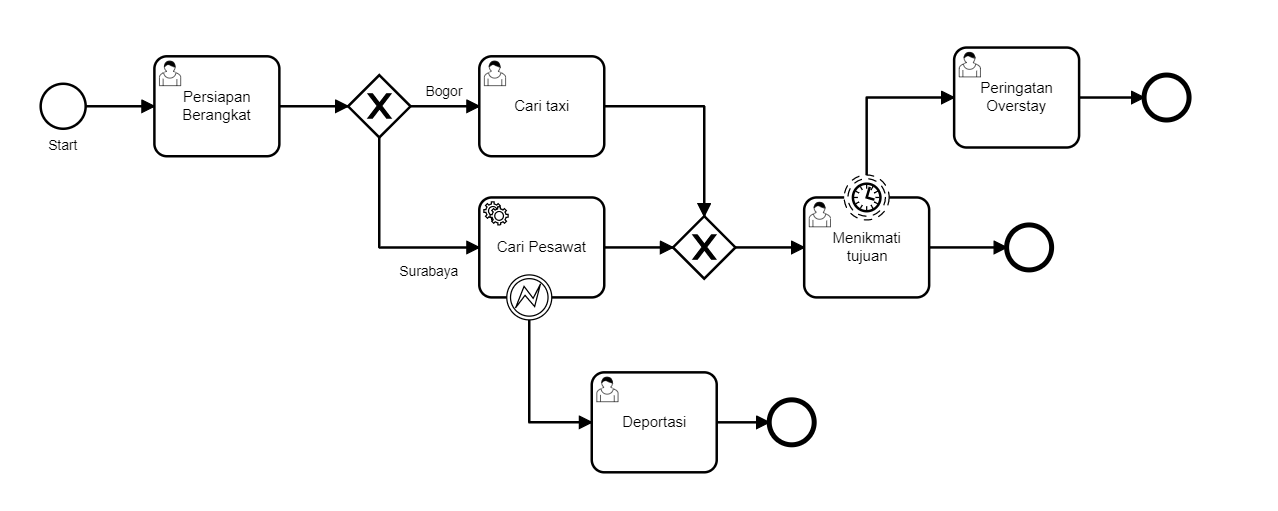
- Supports BPMN 2.0 (Business Process Model and Notation) for workflow modeling.
- Supports DMN 1.3 (Decision Model and Notation) for decision modeling.
-
Open Architecture:
- Easily integrates with existing systems via REST APIs, Java APIs, and connectors.
- Lightweight and scalable, suitable for cloud-native and microservices architectures.
-
Flexibility:
- It can run embedded within Java applications or as a standalone service.
- Supports integration with popular frameworks like Spring Boot.
-
Monitoring and Optimization:
- Camunda Optimize provides insights and analytics to improve processes.
- Cockpit UI for real-time monitoring of running workflows.
-
Task Management:
- Camunda Tasklist is used to manage and assign tasks to users.
- User-friendly interfaces for both technical and non-technical users.
-
Community and Enterprise Editions:
- Open-source version for community use.
- The enterprise version includes advanced features like clustering, technical support, and additional analytics.
Core Components
-
Camunda Modeler:
- A desktop application for modeling workflows (BPMN) and decisions (DMN).
-
Camunda Engine:
- The execution engine that runs workflows and decisions.
- Supports Java-based deployments or standalone execution.
-
Camunda Cockpit:
- A web-based tool for administrators to monitor and manage process instances.
-
Camunda Tasklist:
- A web application for end-users to interact with assigned tasks.
-
Camunda Optimize (Enterprise-only):
- A tool for performance monitoring and analytics of workflows.
Use Cases
-
Business Process Automation:
- Automating order processing, approval workflows, or customer onboarding.
-
Microservices Orchestration:
- Coordinating services in a distributed architecture.
-
Decision Management:
- Automating rule-based decisions, such as credit risk evaluations.
-
Case Management:
- Managing unstructured, dynamic workflows.
Why Use Camunda?
- Open-Source Advantage: No licensing costs for the community edition.
- Standards-Based: BPMN and DMN support ensures compatibility and portability.
- Scalability: Can handle large-scale workflows in enterprise environments.
- Developer-Friendly: Extensive API support and integration options.
Installing Camunda involves setting up its components like the engine, modeler, and optional monitoring tools. Below are step-by-step instructions to get started with Camunda in different environments:
1. Prerequisites
Before installing, ensure you have:
- Java Development Kit (JDK): Version 11+ (check with
java -version). - Database: Camunda supports several databases (e.g., MySQL, PostgreSQL, H2). An embedded H2 database is included for testing.
- Maven (if building a project): Version 3.6+.
2. Install Camunda Platform
Camunda can be installed using the pre-packaged Camunda Platform Run, embedded into a Spring Boot application, or deployed on an application server like Tomcat or WildFly.
Option A: Using Camunda Platform Run
-
Download the Camunda Run Distribution:
- Go to the Camunda Download Page.
- Download the "Camunda Platform Run" distribution.
-
Extract the Archive:
- Unzip the downloaded file to a folder of your choice.
-
Start the Server:
- Navigate to the extracted directory.
- Run the following command:
./start.sh # Linux/Mac
start.bat # Windows - This starts Camunda on
http://localhost:8080.
-
Access Camunda Webapps:
- Go to http://localhost:8080/camunda.
- Default login credentials:
- Username:
demo - Password:
demo
- Username:
3. Install Camunda Modeler
-
Download Camunda Modeler:
- Go to the Camunda Modeler Page.
- Download the version suitable for your OS.
-
Install the Application:
- Follow installation steps based on your platform (e.g., drag to Applications on macOS).
-
Start Modeling:
- Open the modeler and create BPMN/DMN diagrams.
4. Optional: Connect to a Database
By default, Camunda uses an embedded H2 database. To connect to a production-ready database like MySQL or PostgreSQL:
- Edit the database configurations in
application.propertiesorserver.xml. - Install the required database driver.
- Restart the server.